Print Order

Complete documentation to install, configure, and use the Print Order module in your PrestaShop store.

What is Print Order?

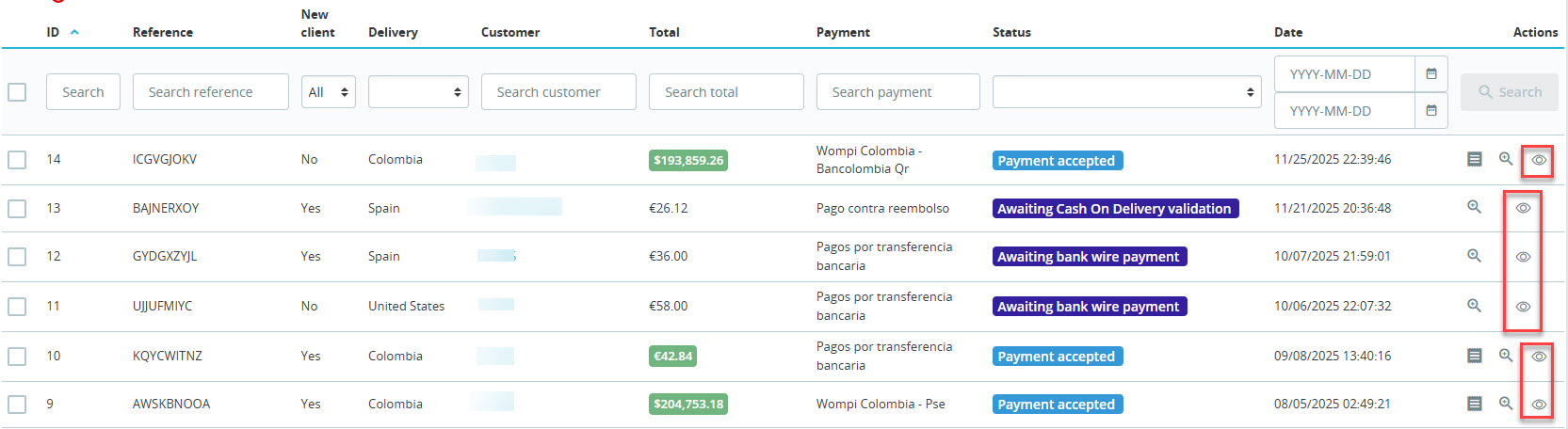
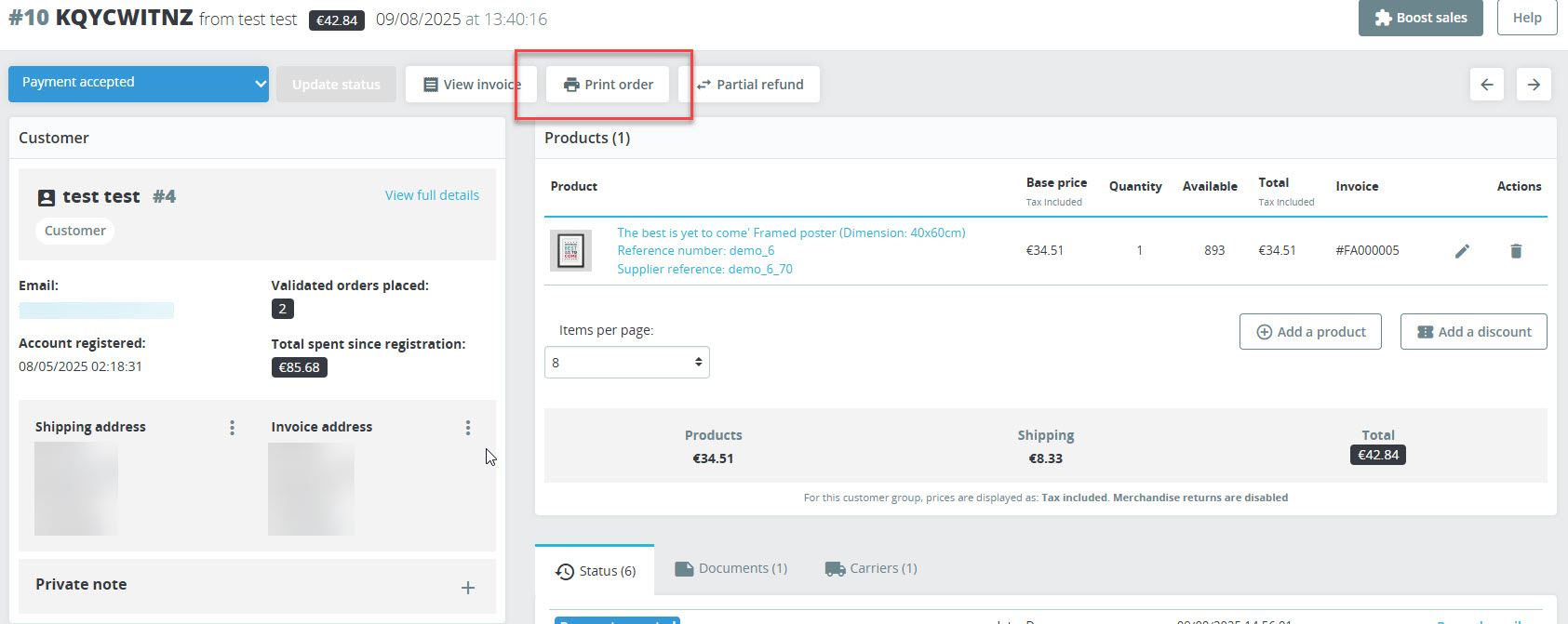
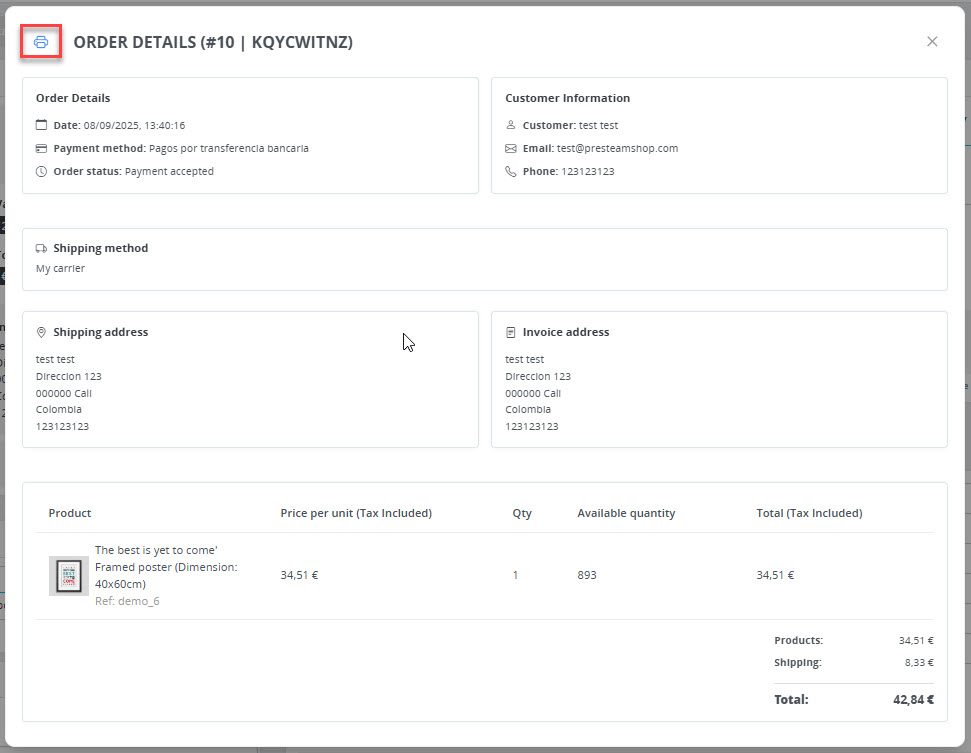
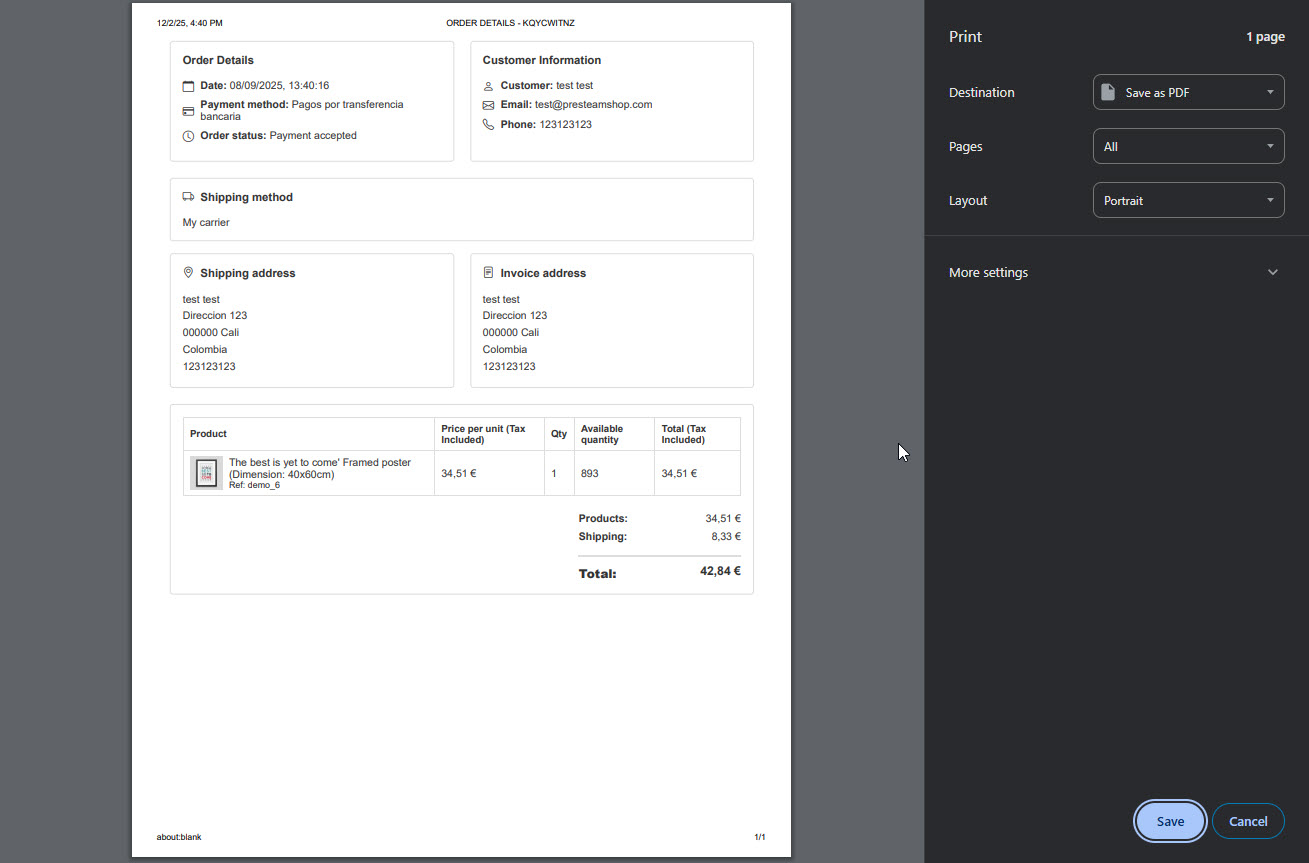
Print Order is a module for PrestaShop that allows you to print orders quickly and easily directly from the administration panel. With an intuitive interface integrated into the order list and order details, you can generate prints with all relevant order information.

5.0.0
Version
PS 1.7.6+
PS 8.x
PS 9.x
Multistore
Multi-language
Main Features

Quick Printing

Print orders with a single click from the order details view.

Complete Information

Includes all order data: customer, products, addresses, totals, shipping method, and payment method.

Backup System

Create, restore, and manage module backups easily.

Multi-language

Built-in translation editor with support for multiple languages.

System Requirements

Requirement Minimum Recommended
PrestaShop 1.7.6 9.x
PHP 7.2 8.1+

Installation

There are two methods to install the module in your PrestaShop store, depending on your server characteristics.

Method 1: Installation from Back Office

1
Access the Back Office

Log in to your PrestaShop store administration panel.

2
Navigate to Modules

Go to Modules → Module Manager in the side menu.

3
Upload the module

Click "Upload a module" and select the downloaded ZIP file.

4
Install and activate

Once uploaded, the module will install automatically. Click "Configure" to get started.

Method 2: FTP Installation

1
Extract the ZIP file

Extract the contents of the ZIP file on your local computer.

2
Connect via FTP

Use an FTP client (like FileZilla) to connect to your server.

3
Upload the module folder

Upload the module folder to /modules/ in your PrestaShop installation.

4
Install from Back Office

Go to Modules → Module Manager, search for the module and click "Install".

Possible Installation Issues

If you experience override errors when installing or activating the module, don't try to resolve it yourself if you don't have technical experience. Contact our support team to receive personalized help and resolve the conflict safely.

Contact Support

Configuration

General Configuration

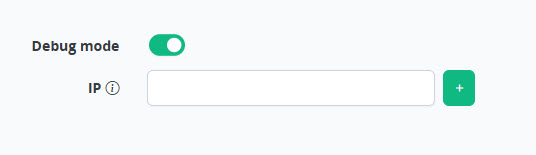
Module general configuration panel

The module configuration panel allows you to customize its behavior. Access it through Modules → Print Order → Configure.

Debug Mode

Debug mode allows you to test the module without affecting other users. Only configured IPs will be able to see the active module.

Available options:

  • Enable debug: Enables test mode
  • Debug IP: Your IP address for exclusive access

Module Usage

Backup Management

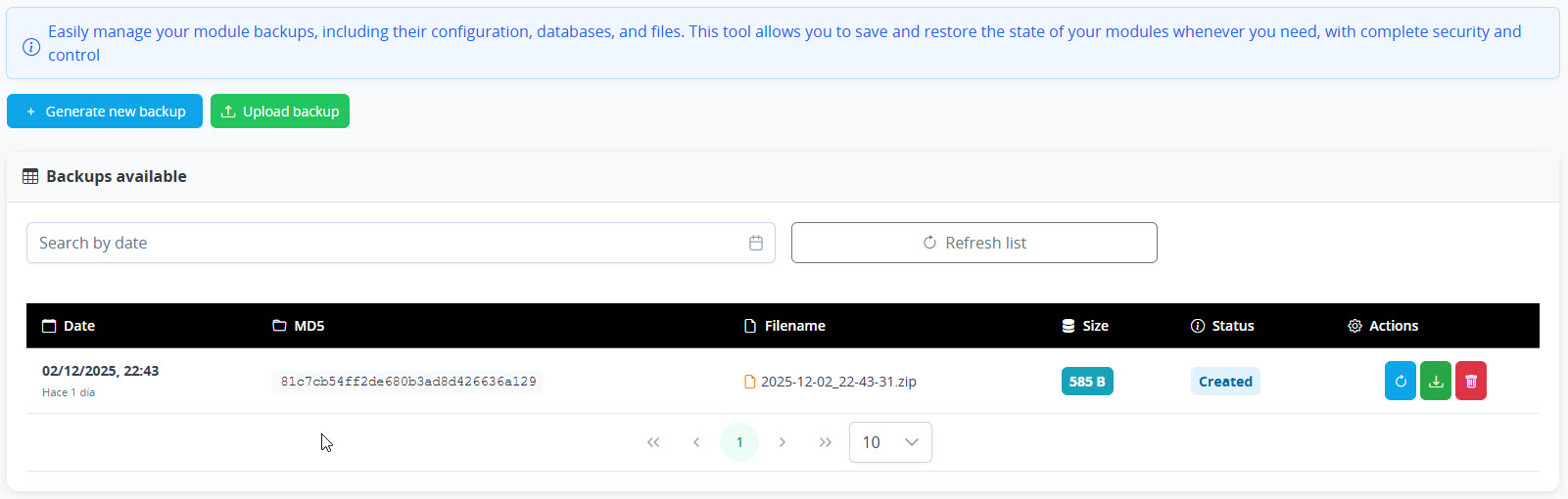
The backup system allows you to create backup copies of the module to protect your settings and restore them if needed.

Backup management panel

Create a Backup

  1. Access the module configuration
  2. Go to the "Backups" section
  3. Click "Generate new backup"
  4. Wait for the process to complete

Restore a Backup

  1. Locate the backup you want to restore in the list
  2. Click the "Restore" button
  3. Confirm the action in the dialog
  4. Wait for the restoration to complete

Manage Backups

You can perform the following actions with your backups:

Download

Download in ZIP format

Upload

Upload a previously downloaded backup

Restore

Revert to a previous version

Delete

Remove old backups

Translations

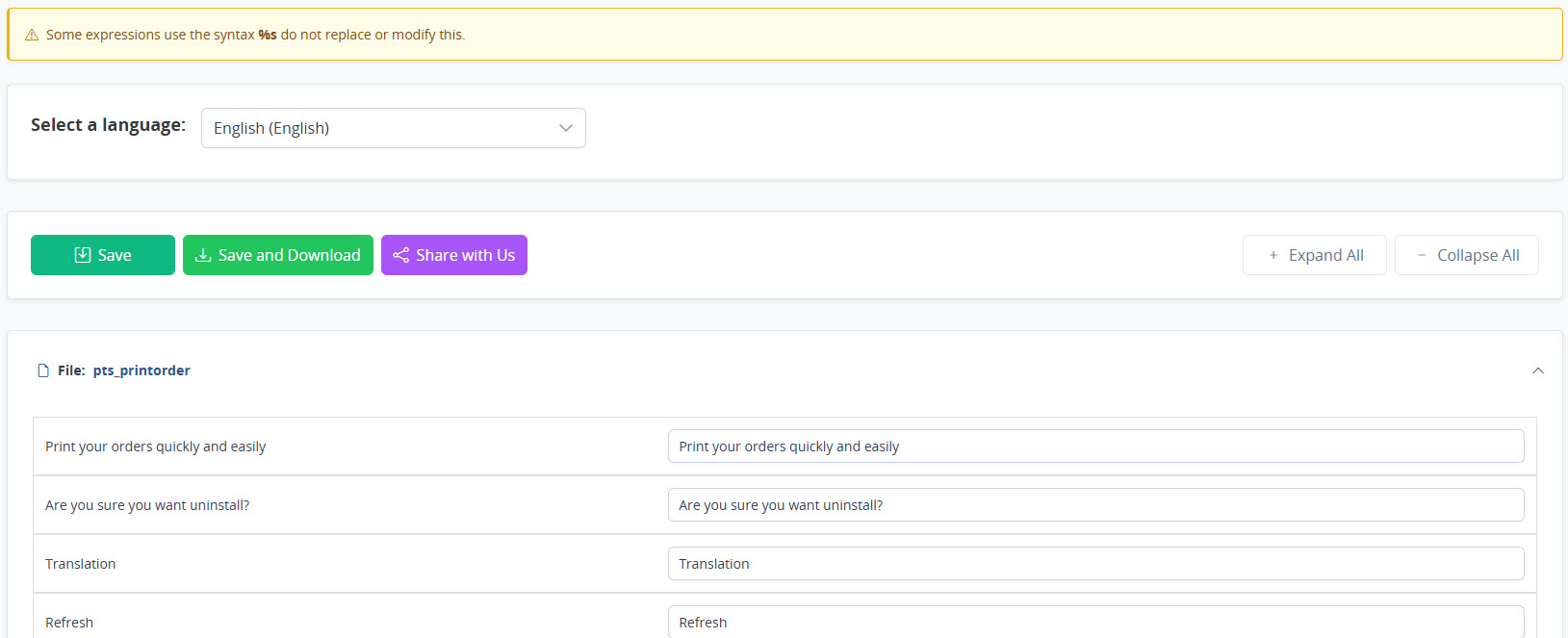
Built-in translation editor

Edit Translations

The module includes a translation editor that allows you to customize all texts in any language installed in your store.

  1. Access the "Translations" section in the module configuration
  2. Select the language you want to edit
  3. Modify the text strings as needed
  4. Click "Save" to apply the changes

Share Translations

You can download your translations for backup or share them with us to include them in future module versions.

Available options:

  • Download: Export translations to a file for backup
  • Share: Send your translations to PresTeamShop to include them in future versions

Troubleshooting

Common Issues

Verify that the module is correctly installed and activated. If you have debug mode active, make sure your IP is in the allowed IPs list. Also clear the PrestaShop cache from Advanced Parameters → Performance.

This can happen if the order doesn't have all the information (for example, if the customer didn't provide a phone number). Check the order data in PrestaShop. If data that should be there is missing, contact support.

Verify that your PHP version is compatible (7.2 or higher). Check PHP and PrestaShop error logs. If the problem persists, contact technical support providing the error messages.

If you receive an override error during installation, it means another module is already using the same files. Don't try to resolve it manually. Contact our support team to receive personalized help.

Frequently Asked Questions

Licenses and Purchase

The license includes updates and technical support for a specific period (6, 12, or 24 months depending on the plan chosen). Once it expires, you can optionally renew to continue receiving updates and support.
The license includes installation on one production domain, access to all updates, and technical support during the active license period.
You can see the live demo available on our website to explore all the module features. We do not offer trial versions for installation on your site.
The module will continue to work normally, but you will not receive new updates or have access to technical support.

Installation and Compatibility

The module is designed to work with any theme that follows PrestaShop standards. If you experience any conflict with your theme, contact our support team.
Yes, your license includes installation in two environments: production and development/staging. This allows you to test updates and changes before applying them to your live store.
Yes, the module is designed to be compatible with other modules. In case of conflict with a specific module, our support team can help you resolve it.
No, installation is very simple and is done from the PrestaShop Back Office. If you have any problems during installation, our support team is available to help you.

Updates

No, updates preserve all your configuration and data. You would only lose the configuration if you uninstall and reinstall the module, which is not necessary for updating.
You can check for new versions by visiting our website or accessing your account in our store. We will soon add the option to check for updates directly from the module panel.
It is not mandatory, but it is recommended to update to enjoy the latest improvements, new features, and security fixes.

Technical Support

We usually respond within 24-48 business hours.
Yes, as long as you have active support within your license period, you have full access to technical support.
You can request help with installation, configuration, error resolution, and general questions about how the module works.
Yes, our support team provides assistance in both Spanish and English.

Refunds and Warranty

We only apply refunds if the module fails to work in your store after receiving technical support. Keep in mind that before purchase you have a demo available to test the module.
We guarantee that the module works as described in the documentation. If you find any bug, we fix it at no additional cost.

Customization

Yes, we offer custom development services. Contact our support team to request a personalized quote.
It is not recommended to modify the module code yourself, as you would lose technical support and when updating the module you would lose the changes made. If you need additional features, we recommend requesting a custom development quote so that the changes are included in the module and maintained in future versions.

Support

If you need additional help or have any questions about the module, we're here to help.

Email Support

Send us an email and we'll respond as soon as possible.

support@presteamshop.com

Help Center

Visit our help center for more resources.

Visit Help Center